노트
VM에 GitLab 설치하고 root 비밀번호 재설정하기
이 글은 한국어로만 있습니다
gitlab.rb의 external_url을 실제 접속 주소로 바꾸고 gitlab-ctl reconfigure를 돌려야 접속이 된다. root 초기 비밀번호는 /etc/gitlab/initial_root_password에 있지만 첫 reconfigure 후 24시간이 지나면 자동 삭제된다. 그 뒤에는 sudo gitlab-rails console에서 User.find_by_username('root')로 계정을 찾아 password와 password_confirmation을 함께 지정하고 save!가 true를 반환하는지 확인한다.
GitLab 설치
방화벽 설정
sudo ufw status

sudo ufw enable

sudo ufw status

sudo ufw allow 80

sudo ufw status
GitLab dependencies 패키지 설치
sudo apt update

sudo apt upgrade -y

sudo apt install -y curl openssh-server ca-certificates tzdata perl
GitLab 패키지 레포 추가 및 설치
레포추가
curl https://packages.gitlab.com/install/repositories/gitlab/gitlab-ee/script.deb.sh | sudo bash\gitlab 설치
sudo apt install gitlab-ee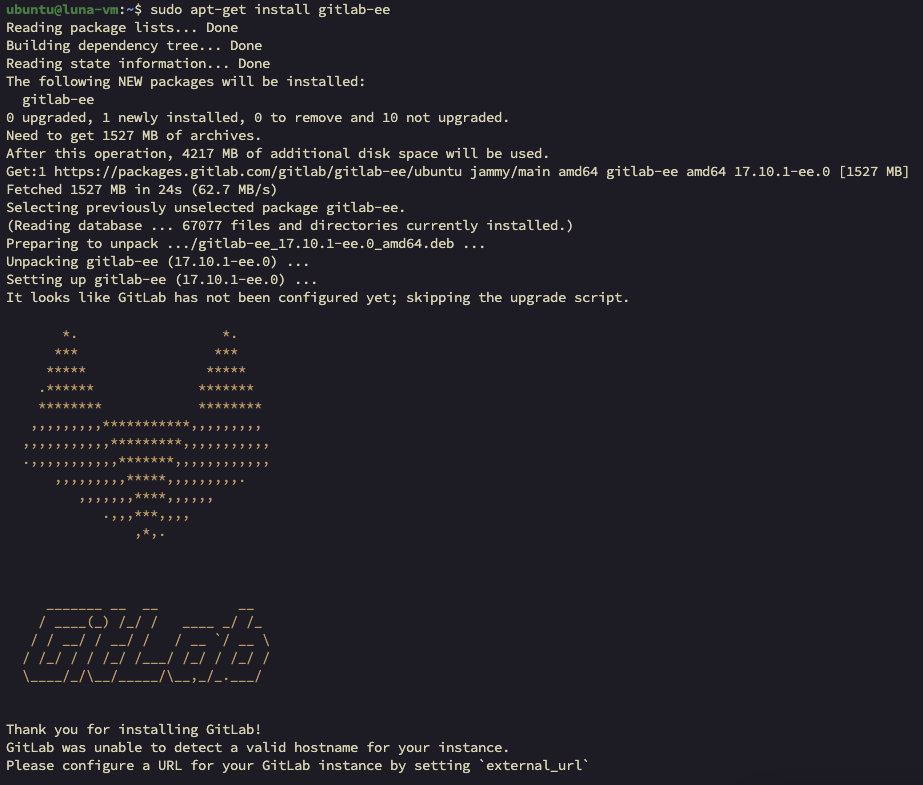
Gitlab 환경파일 수정
sudo vim /etc/gitlab/gitlab.rb

## 아래 항목 수정
external_url 'http://VM_HOST:80'
Gitlab 환경 파일 적용 및 상태 확인
gitlab 변경 파일 재구성 및 재기동
sudo gitlab-ctl reconfigure현재 gitlab 상태 확인
sudo gitlab-ctl statusGitLab 접속
root 접속 패스워드 확인
sudo cat /etc/gitlab/initial_root_password# WARNING: This value is valid only in the following conditions
# 1. If provided manually (either via `GITLAB_ROOT_PASSWORD` environment variable or via `gitlab_rails['initial_root_password']` setting in `gitlab.rb`, it was provided before database was seeded for the first time (usually, the first reconfigure run).
# 2. Password hasn't been changed manually, either via UI or via command line.
#
# If the password shown here doesn't work, you must reset the admin password following https://docs.gitlab.com/ee/security/reset_user_password.html#reset-your-root-password.
Password: REDACTED
# NOTE: This file will be automatically deleted in the first reconfigure run after 24 hours.- username: root
- password: REDACTED
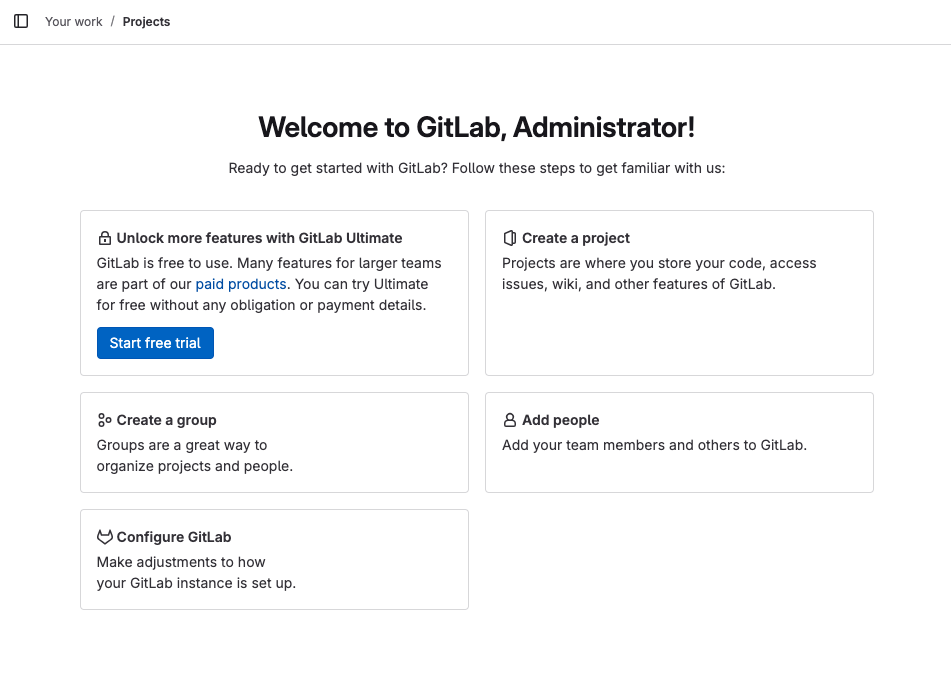
로그인 후 화면
root 비밀번호 재설정
GitLab 콘솔 진입
sudo gitlab-rails console콘솔에서 아래 명령어 입력
user = User.find_by_username('root')
user.password = 'REDACTED'
user.password_confirmation = 'REDACTED'
user.save!
저장 확인 메시지가 => true 인 것 확인
exit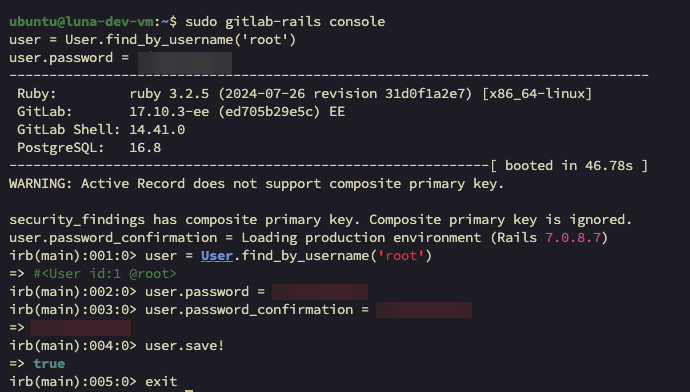
계정 추가 및 비밀번호 설정
계정 추가
- Admin area > New User
- Account 정보 입력 후
Create user클릭
계정 비밀번호 설정
- Admin area > Users >
${계정이름}> Edit - Password 란에 비빌번호 입력 후
Save changes클릭